
Coach guide
MarkIT for Excel
MarkIT for Excel is a panel that opens inside Excel and pulls your athletes' logged sessions into a live table you can chart, filter, and share. Add it once, sign in, and it keeps itself up to date.
On your plan: the live, refreshable add-in is a Pro feature. Every plan, including Free, can still export a basic CSV feed and download the branded Excel template.
1. Install the add-in
In MarkIT, go to Settings → Excel and click Get the MarkIT Excel add-in to download the file. Then add it to Excel:
On a Mac
- 1Open Finder, press Cmd + Shift + G, paste
~/Library/Containers/com.microsoft.Excel/Data/Documents/wefand press Enter. - 2Drop the downloaded file into that folder.
- 3Quit and reopen Excel.
- 4Go to Insert → Add-ins → Developer Add-ins → MarkIT for Excel.


On Excel for Windows
Windows Excel doesn't have a one-click upload for add-ins like this one. You point Excel at a folder on your PC once, and it picks the add-in up from there. It takes about two minutes and you only do it once.
- 1Make a folder for it, for example
C:\MarkITand put the downloaded file inside it. - 2Right-click that folder → Properties → Sharing tab → Share…, add your own Windows user, and click Share. Windows shows a network path like
\\YOUR-PC\MarkIT. Copy it. - 3In Excel, go to File → Options → Trust Center → Trust Center Settings → Trusted Add-in Catalogs.
- 4Paste that network path into Catalog Url, click Add catalog, tick Show in Menu, then OK.
- 5Close Excel completely and reopen it.
- 6Go to Insert → My Add-ins → the Shared Folder tab → MarkIT for Excel → Add.
On Excel in a browser
- 1Open your workbook at excel.office.com → Insert → Add-ins → More Add-ins.
- 2Click My Add-ins → Upload My Add-in, browse to the downloaded file, and click Upload.
- 3MarkIT for Excel opens in the panel on the right.
2. Sign in
Open the MarkIT panel and click Sign in with MarkIT. A window opens; sign in with your MarkIT email, Google, or Apple, the same way you sign in on the web. The window closes on its own and the panel connects. You only do this once per computer.

If sign-in is blocked on your setup (some older Excel versions, or a browser that blocks Google inside apps), open Advanced: connect with a Feed URL in the panel, then paste your Feed URL from Settings → Excel. It works exactly the same after that.
3. Choose what to pull
A short wizard walks you through three steps:
- 1Athlete: pick one athlete, or All athletes (which writes one sheet per athlete plus an Overview).
- 2Program: the athlete's current program is selected by default; pick more, or turn on Each program on its own sheet to get a sheet per program plus a Directory that links to each.
- 3Stats: every tracked throw and lift is listed; uncheck anything you don't want. Then click Insert into sheet.

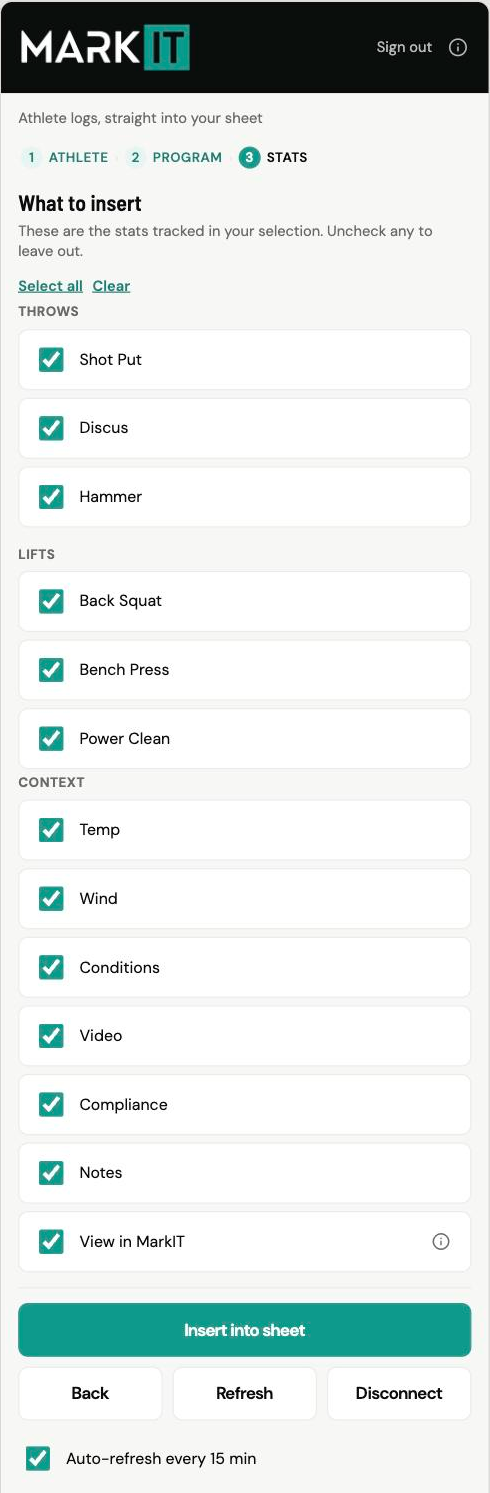

You get one clean row per training day, with each implement and lift in its own column, ready to chart or pivot.
Naming your workbook
The add-in names your sheets automatically (by program and dates). Excel doesn't let add-ins rename the workbook file itself, so save the file once with the name you want, for example Team Throws 2026.xlsx.
4. Keeping it current
MarkIT pulls the latest whenever you click Insert or Refresh, when you reopen the panel, and automatically every 15 minutes while it's open (auto-refresh is on by default, you can turn it off at the bottom of the panel). New sessions are added to the bottom in date order, so any chart you build on the table keeps working and extends on its own. It isn't instant the moment an athlete logs; the next refresh picks it up.
A refresh always writes back to the sheet MarkIT created, not whatever sheet you happen to be looking at. If you ask it to insert onto a sheet that already has your own work on it, it stops and tells you instead of writing over it.

Troubleshooting
The panel or icon looks stuck / blank
Fully quit Excel (not just close the window) and reopen it. That clears Excel's add-in cache.
It's asking you to sign in again
Nothing is wrong. Click Sign in with MarkIT and you're straight back in. Excel can clear the panel's saved sign-in (clearing the Office cache on Windows does it), and regenerating your Feed URL in Settings does too. Note that Sign out in the panel switches your feed link off on purpose, so anything built on that same link stops updating until you sign in again.
After a MarkIT update
Re-download the add-in file from Settings → Excel and drop the new copy into the same folder (the
weffolder on a Mac, or your shared add-in folder on Windows), then quit and reopen Excel.Sign-in won't open
Use Advanced: connect with a Feed URL in the panel and paste your Feed URL from Settings. Everything works the same afterward.
Still stuck? Reach us from your MarkIT account and we'll help.